
Orchard MCP
Connect an agent to Pear market data and trading tools with Orchard MCP.
Orchard connects your agent to Pear through the Model Context Protocol (MCP). Your agent can use Pear market data and trading tools from an MCP client such as Claude or ChatGPT.
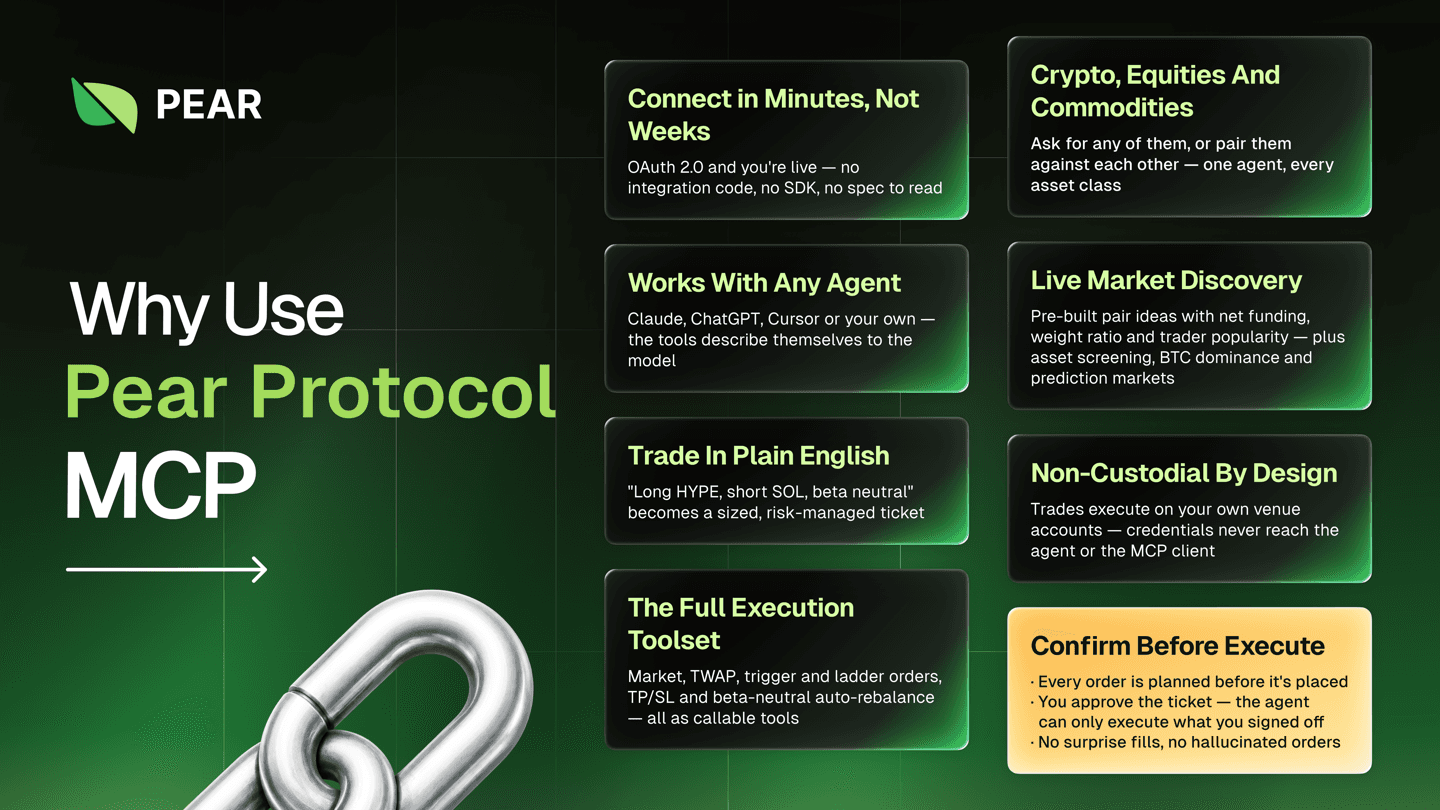
What Orchard can do
Use Orchard to:
- Find pairs, baskets, and Agent Pear narrative baskets (via Agent Pear).
- Check correlation, cointegration, z-score, hedge ratio, and market signals.
- Review positions, PnL, funding, pending orders, and rebalance status.
- Plan and place market, trigger, TWAP, or ladder orders.
- Start, change, or stop automatic position rebalancing.
Orchard always creates a trade plan before it places an order. You must approve the plan. Orchard can only place the order that you approve.
How Orchard works
The full flow has six steps:
- Connect Orchard to your MCP client.
- Sign in to Pear and approve access.
- Select a Pear trade account.
- Ask your agent to find data or prepare a trade.
- Review and approve the trade plan.
- Ask your agent to check the order result.
Read-only requests stop after step 4. Trade requests continue through steps 5 and 6.
Before you connect
Orchard trades through a Pear trade account. This account connects Pear to your exchange account.
- Open the Orchard app.
- Create a trade account.
- Connect your Hyperliquid or Lighter account.
Your exchange credentials stay in Pear. Orchard does not send these credentials to your agent or MCP client.
Connect your MCP client
Add a new MCP server in your client. Use these values:
| Setting | Value |
|---|---|
| Name | Orchard (or another name) |
| URL | https://mcp.pearprotocol.io/mcp |
| Authorization | OAuth 2.0 |
Complete these steps:
- Save the MCP server settings.
- Sign in on the Pear page that opens.
- Review the requested access.
- Approve the connection.
Your Pear password and exchange credentials stay in Pear. The MCP client receives only the access that you approve. You can revoke this access in Pear.
For a visual setup example, see the setup tutorial.
Select a trade account
Orchard uses these rules:
- Orchard selects your account when you have one active trade account.
- Your agent asks you to select an account when you have multiple active accounts.
- Orchard asks you to create an account when you have no active account.
Use the same account when you plan and place a trade.
Prepare and approve a trade
Ask your agent to prepare a trade. The agent uses Orchard to validate the trade and create a plan. This step does not place an order.
Review these plan details:
- Trade account
- Assets and direction
- Size
- Order type
- Trigger, schedule, or ladder settings
Approve the plan only when all details are correct. Orchard then places that exact plan.
Ask for a new plan when the plan expires or when you want to change a detail.
Check the result
Ask your agent to check the execution after it places the order. You can also ask for your current positions, pending orders, or account summary.
Do not approve the same trade again when the first result is not clear. Ask the agent to sync the account and check the first execution.
Build an integration
Read the Pear MCP integration guide if you build an MCP client or server-side integration. The guide explains authentication, scopes, volume attribution, trade-account selection, trading flows, errors, and all available tools.